
Cover display
Outer screen · portrait
1398 × 2034 px · PNG · 5.5 MB
Download PNGReleased October 30, 2026 · Last reviewed October 28, 2026
Maintained by the iPhone Duo Wallpapers editorial team · Editorial policy
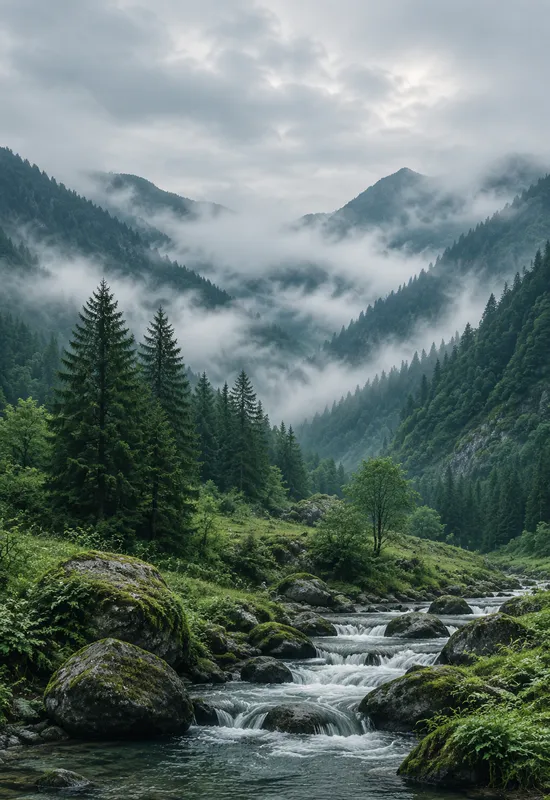
A deep green valley after rain, with low clouds between forested ridges. The cover keeps the sky calm for the clock, and the inner carries the layered ridges across the wide display.
A deep green valley after rain, with low clouds between forested ridges. The cover keeps the sky calm for the clock, and the inner carries the layered ridges across the wide display. A deep green valley after rain, low clouds caught between forested ridges, and a soft silver sky. The composition is built like a landscape photograph: a clear horizon, layered depth, and a subject that sits low enough to leave the top of the screen calm. The top of the cover is intentionally soft, which gives dark clock text more contrast; white text may rely on the system shadow. On the inner display, the pale field keeps widgets readable without a heavy scrim.
Emerald green, moss, slate grey, and a soft silver sky. The top of the cover is intentionally soft, which gives dark clock text more contrast; white text may rely on the system shadow. On the inner display, the pale field keeps widgets readable without a heavy scrim.
The portrait crop keeps the upper sky open and places the forested ridges in the lower half. The cover keeps the horizon low and the sky open, so the clock has a calm field above the subject.
The wide crop layers the ridges across the display, with the mist separating each plane. The wide crop carries the horizon across the display and leaves the upper area calm for widgets.
The Cover file is portrait and the Inner file is landscape. Set each file on its matching display, and preview the crop before confirming. Keep the main subject away from the top edge of the cover screen, where the clock and status area sit, and away from the camera cutout. The previews on this page are compressed WebP files; always download the original before setting it. If you use the image on a different phone, start with the Cover file for a portrait screen and the Inner file for a tablet or desktop, then crop to fit.
Prefer a written walkthrough? See the how to set an iPhone Duo wallpaper guide.
Each display has its own file at the original resolution. Download them separately, or take both together as a single ZIP.
Outer screen · portrait
1398 × 2034 px · PNG · 5.5 MB
Download PNG
Unfolded screen · landscape
2670 × 1878 px · PNG · 8.0 MB
Download PNGCover + Inner in one ZIP
13.5 MB · Original quality
Download ZIPBoth files are standard images and work on other phones, tablets and desktops. Zoom and crop to keep the main subject centered.
Choose the portrait Cover file for the outer screen and adjust the crop.
Choose the landscape Inner file for the open display and position it.
Keep both files together for a consistent light or dark appearance.
Pair it with Rainforest Fog for a green sequence, or with Misty Pines for a lighter morning set. Both sets share a palette family, so switching between them keeps the phone feeling consistent.
More setup details are in the iPhone Duo wallpaper setup guide. For how these pages are written, checked, and corrected, read the editorial policy.
Every set is one artwork delivered for both displays, with the same original-quality downloads.
 View & download
 View & download
 View & download
 View & download


